Sign In
 Sign In
How to add a third party recipient in ScotiaConnect™
Let's get started.
Follow the steps below.
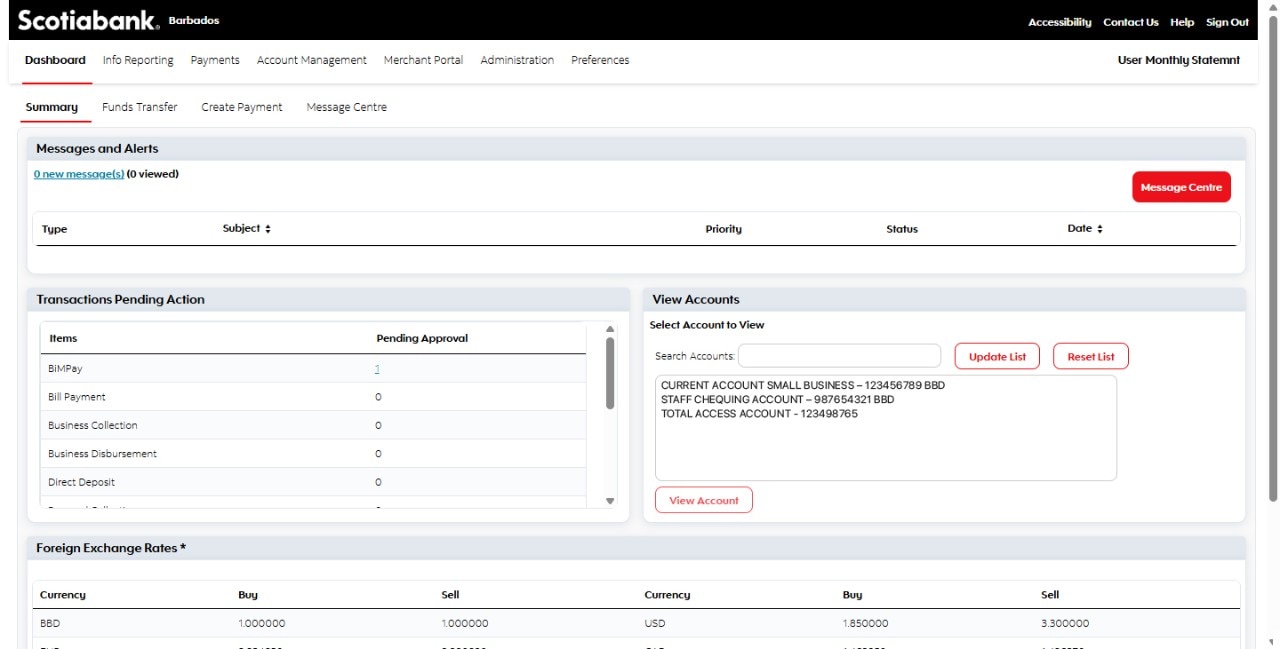
Step 1 - Dashboard
After signing in to ScotiaConnect™ go to the Account Management tab on the dashboard.
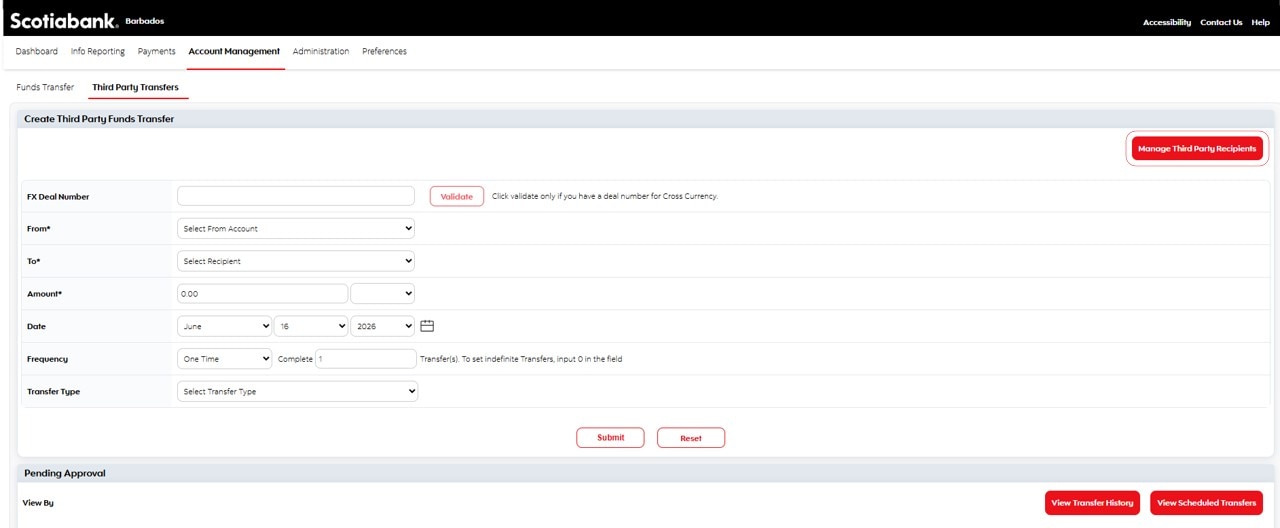
Step 2 - Select Manage Third Party Recipients
From the Account Management tab, click on Third Party Transfers, then click on Manage Third Party Recipients button at right.
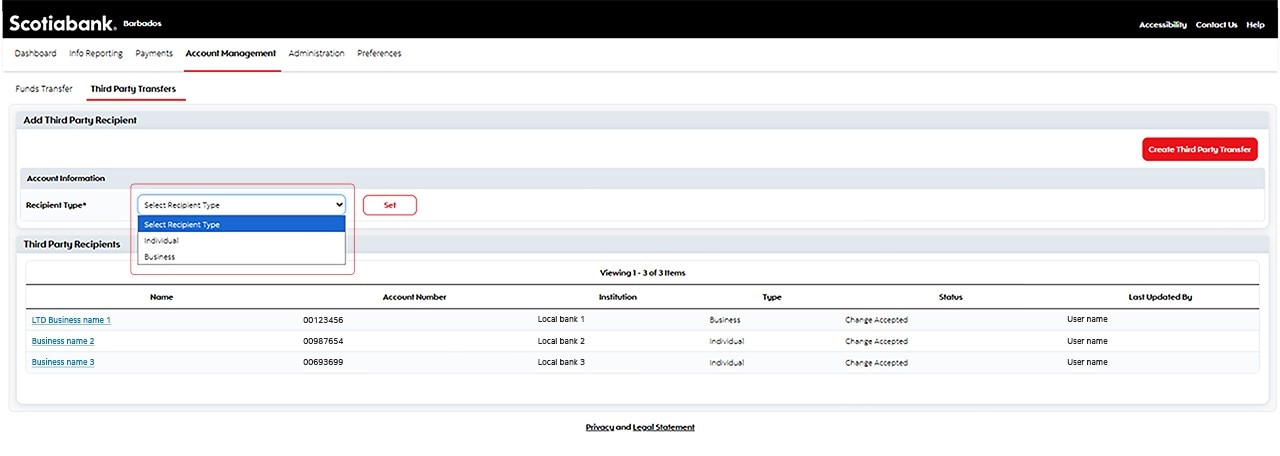
Step 3 - Select Recipient Type
From this drop down choose Individual or Business based on the type of recipient you would like to create.
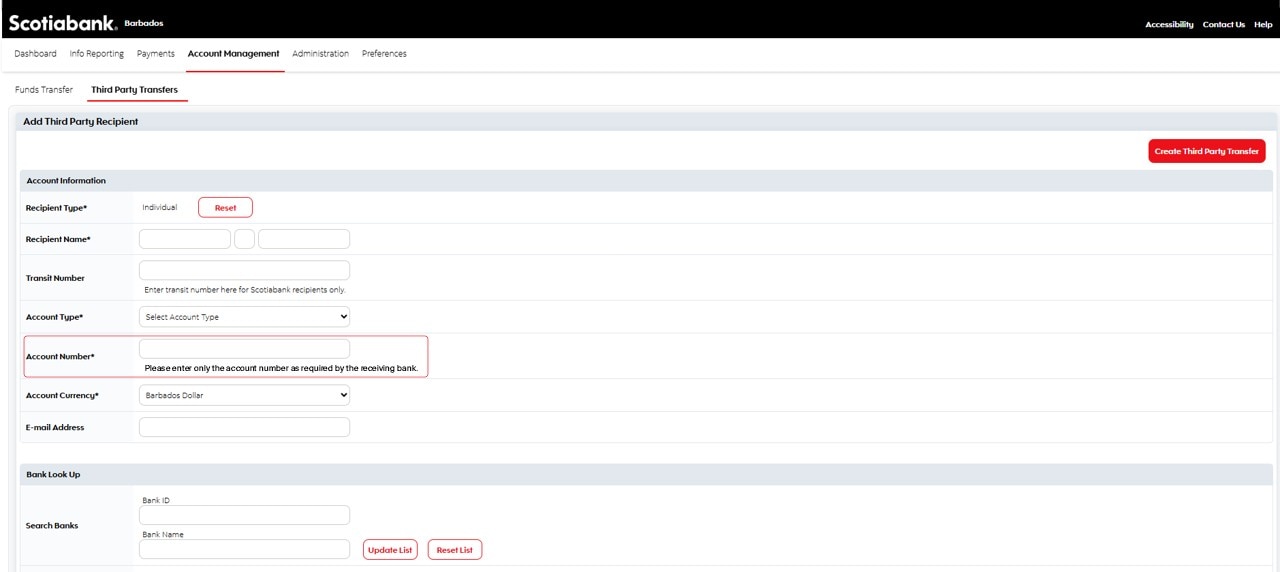
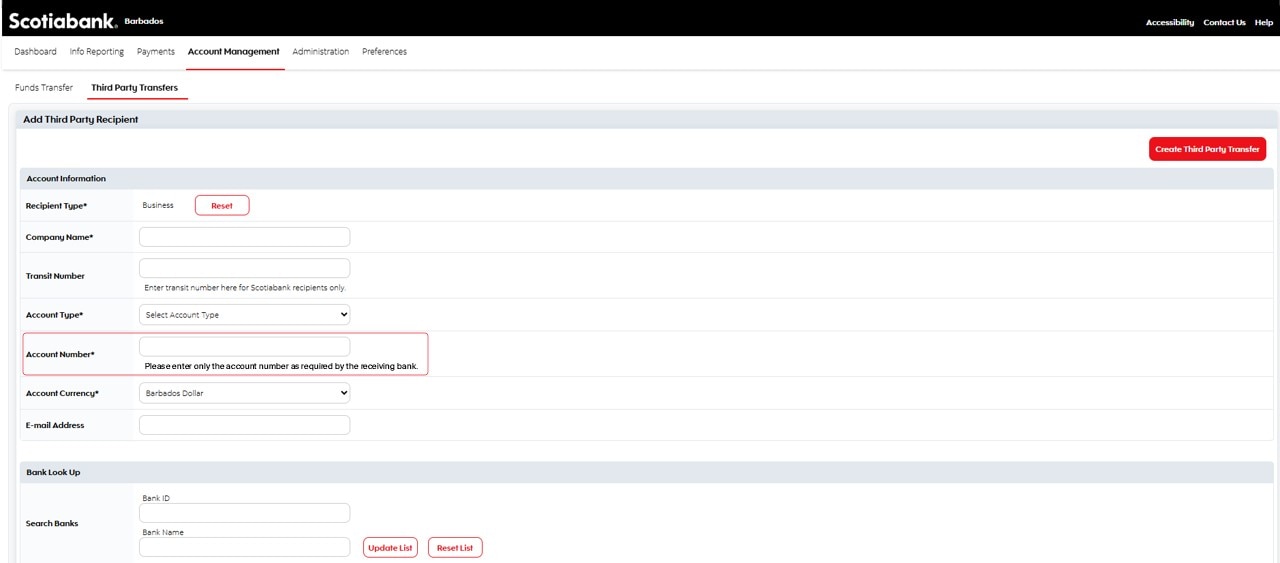
Step 4 - Enter recipient details
Include Name, Transit Number (applies to Scotia recipients only), Account Type, Account Number, etc.
Note: for recipients at other local banks, the Transit Number is not required.

Account Number notice
The Transit Number should no longer be included as part of the account number. Please enter only the account number as required by the receiving bank.
If there are any rejections, please contact the recipient to verify and update their banking information before resubmitting the transaction.
Step 5 - Select the Branch Name
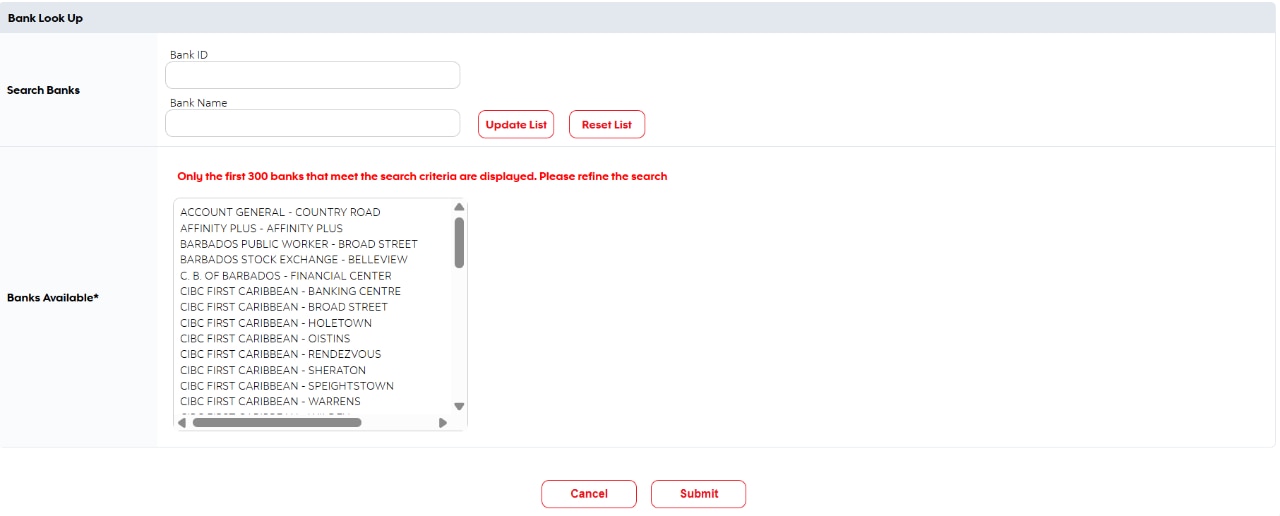
This is new! Instead of typing in the ABA/Routing number, scroll through the list and choose the bank and branch.
Not sure of the Bank and Branch name to be used? Please reference the listing below.